5 Best Free Photo Editing Apps Without a Subscription
Most free photo editors let you choose the perfect filter, then ask for money when you use the good tools. These five still give you enough to finish the edit.

Paying for proper editing software is fair because, if you want advanced masking, RAW editing, batch tools and control over every little part of the image, of course the company will eventually charge you. What annoys me is the app that calls itself free, lets you upload the photo, find a good filter, add some grain and fix the lighting, then asks for another monthly subscription when you tap the tool or try to export the result.
I keep running into this when I only want to tidy an AI-generated image. Usually I need a decent filter, grain that I can control, a little more light on one awkward area and perhaps one distracting object removed. I do not want to send it through another AI model and watch it quietly change the face, furniture and half the image while supposedly fixing one detail.
These are five editors I have used for that kind of quick job. There are no affiliate links here and nobody has paid for a position. Apple Photos, CapCut, VSCO and Lightroom give you useful tools for free, then charge when you need more control, which is reasonable. Snapseed is the strange Robin Hood exception, giving away tools that nearly everyone else keeps behind a subscription and asking for nothing in return.
Quick Answer: What Is the Best Free Photo Editing App?
Snapseed is the best free photo editing app for fast, simple edits because all 30-plus tools and filters are available without a subscription, purchases, ads or a watermark. Apple Photos comes second for iPhone users, CapCut has a surprisingly useful free selection for social edits, VSCO still has some lovely filters, and Lightroom gives you strong manual controls before charging for the serious ones.
| Rank | App | Best for | What is free? | Main catch |
|---|---|---|---|---|
| 1 | Snapseed | The best complete free editor | The full editor | The latest interface is busier than the old one |
| 2 | Apple Photos | Fast edits on an iPhone | Built-in adjustments, filters and supported Clean Up tools | Apple devices only; Clean Up needs newer hardware |
| 3 | CapCut | Filters and quick social edits | Plenty of basic tools, effects and filters | Many of the best assets and AI tools are paid |
| 4 | VSCO | Stylish film-inspired filters | Nine core presets and basic editing | Most of the famous preset library requires membership |
| 5 | Adobe Lightroom | Precise colour and exposure control | Core editing and organisation tools | Masking, healing, RAW editing, batch editing and sync are paid |
How I Chose These Five
I ranked these as someone who wants to improve a photo on his phone and get on with the day. I looked at the free filters, the light and colour controls, whether I could edit one area without affecting everything else, and how long it took to reach a result worth saving. The order comes from using the apps, not from counting features on their pricing pages.
Having 200 AI buttons earns no invented bonus points. An editor can generate a new sky, animate a portrait and write a caption about your emotional journey while remaining completely useless when you want a little grain and slightly warmer skin.
1. Snapseed Is the Best Free Photo Editing App
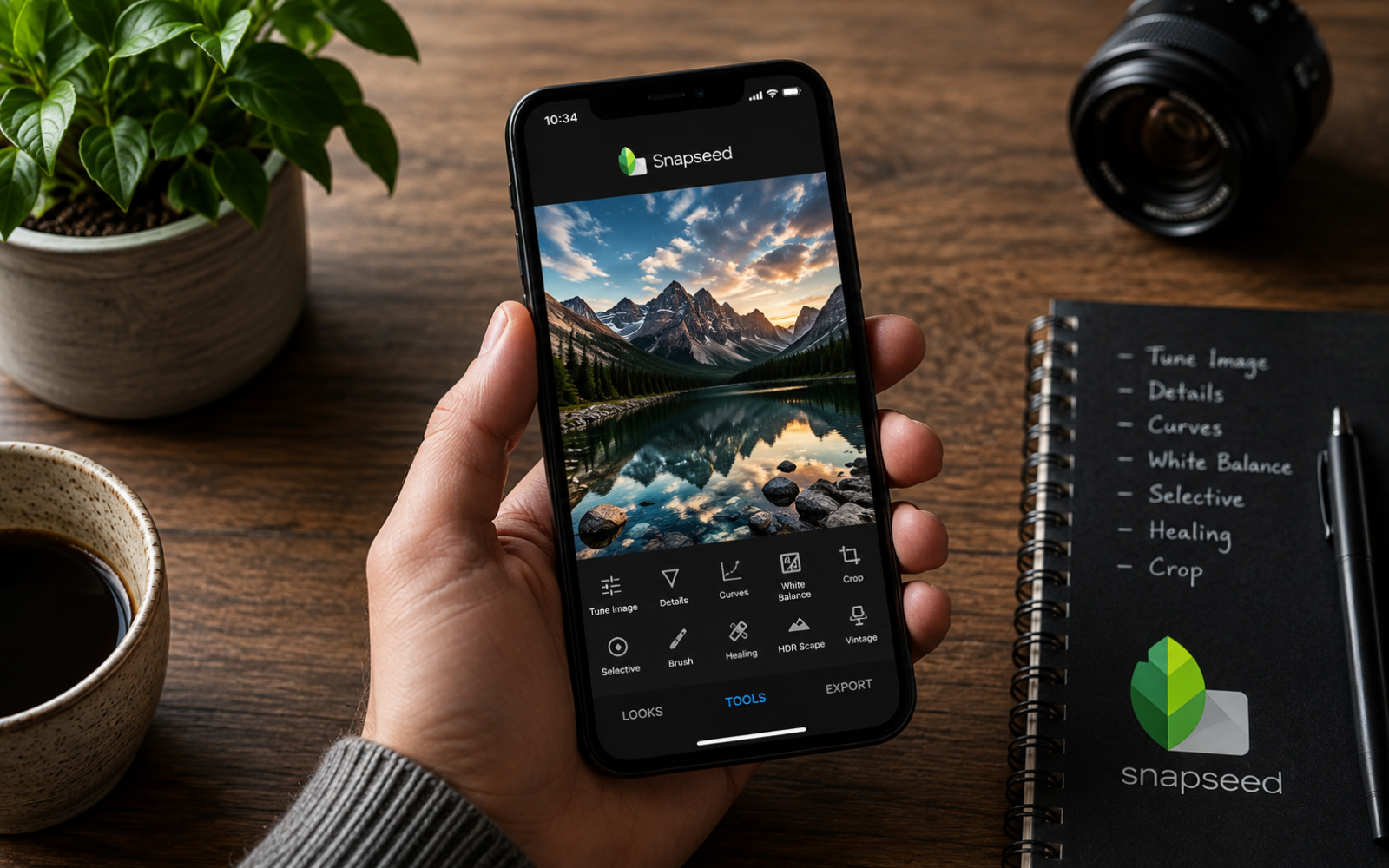
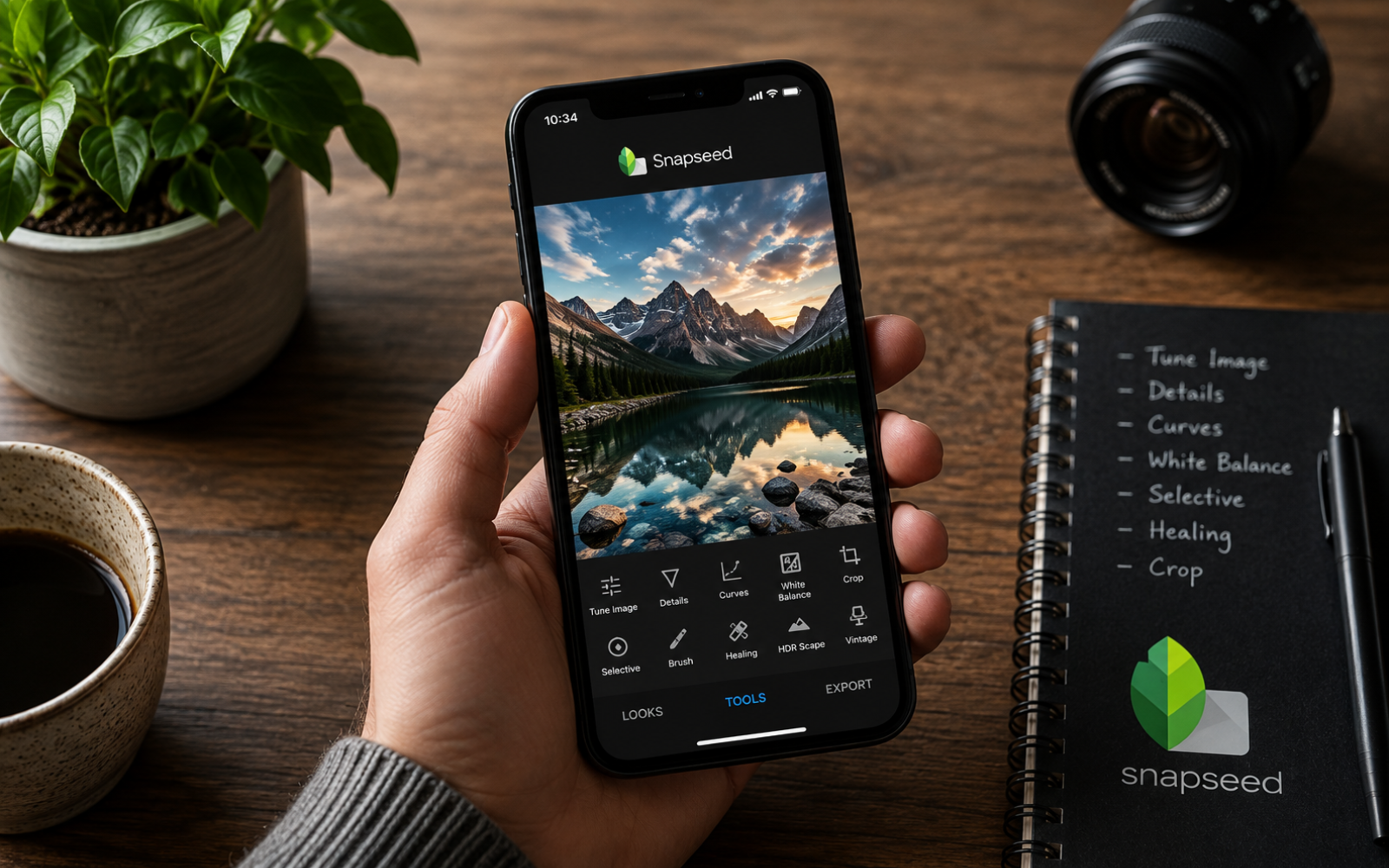
Google's current listing promises more than 30 Snapseed tools and filters with no subscription, purchases, ads or watermark, including film simulations, grain, selective adjustments, healing, curves, white balance, RAW support and a brush for changing exposure, saturation, brightness or warmth in one area. Google lists the full tool set here.
What I Like About Snapseed
The selective and brush tools are why I keep returning to it. If one side of a face is too dark, I can brighten that area without flattening the entire photo. When an AI-generated image looks too polished and clean, the film and grain controls add texture without forcing some preset at full strength.
Snapseed also behaves like software used to: you download it, open a photo and use the tools. There are no gold crowns, no seven-day trial quietly waiting to become a yearly plan and no export button holding the finished image hostage. For a fast edit, it gives me almost everything I would normally expect to pay for without making the app feel complicated.
What I Don't Like About Snapseed
The current version has smart masking, updated film looks, batch editing and broader RAW support, but its redesigned interface is busier than the old Snapseed. I understand why long-time users dislike it, and some of the newer automatic tools can become a little too enthusiastic. The manual controls are still there, so neither problem is enough to spoil the app.
TGK Verdict on Snapseed
Snapseed is the Robin Hood of photo editors. While other apps place a crown on Vintage Dust 04 and value it like a minor piece of real estate, Snapseed gives away local adjustments, healing, proper grain controls, RAW support and the rest of the editor. It is my clear number one because it is the only app here that feels completely free rather than useful until you want one more thing.
2. Apple Photos Is Enough for Most iPhone Edits
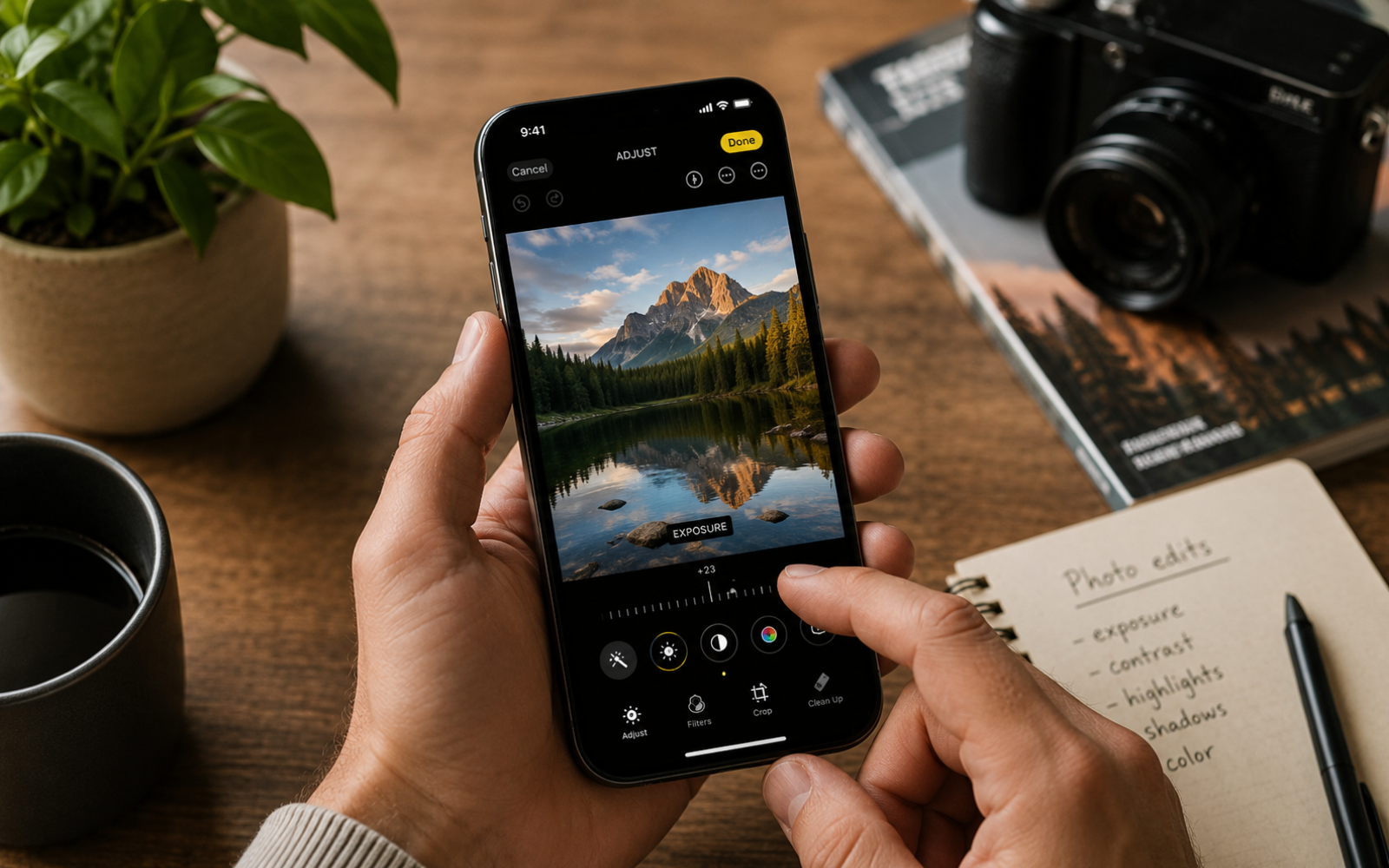
Apple Photos is the editor many iPhone owners forget they already have. Open a photo, tap Edit, and you can deal with exposure, brilliance, highlights, shadows, colour, cropping and straightening. The filters have adjustable intensity, and you can copy the same edits across several images when a set needs to look consistent. Apple explains the current editing controls here.
What I Like About Apple Photos
Its filters are basic beside Snapseed or VSCO, but the normal controls are good and nothing gets in your way. There is no import, extra account or nervous moment when you tap Export and wait to see whether the app demands money. For a quick correction before posting or sending a photo, I would take that over another menu containing 300 effects called Miami Dream and Soft Girlfriend.
Clean Up gives Apple Photos another useful trick because it can remove small distractions when the background is simple, without moving the image into a separate app. You need an Apple Intelligence-capable device and supported software, starting with the iPhone 15 Pro and Pro Max or the iPhone 16 family, so plenty of iPhone owners will not have it. The full device and regional requirements are here. Apple Photos still takes second place without matching Snapseed's grain, film looks or detailed local control because it completes the common jobs with much less noise than CapCut.
What I Don't Like About Apple Photos
The filters are too basic when I want the photo to have a particular mood, and the editor runs out of depth much sooner than Snapseed or Lightroom. Clean Up can be useful, but hardware restrictions mean it is not a normal free feature for every iPhone owner, and difficult backgrounds can still expose what the tool has removed. Apple Photos is convenient because it is already there, not because it gives you the most control.
TGK Verdict on Apple Photos
Before downloading another editor, iPhone users should try the one sitting inside the phone. Apple Photos is second because the basic adjustments are good, the editing process is quick and it never turns a simple exposure fix into a sales funnel. I would move elsewhere for proper grain, better filters or careful local work, but plenty of everyday photos need none of that.
3. CapCut Gives You Plenty for Free, but It Never Lets You Forget Pro Exists
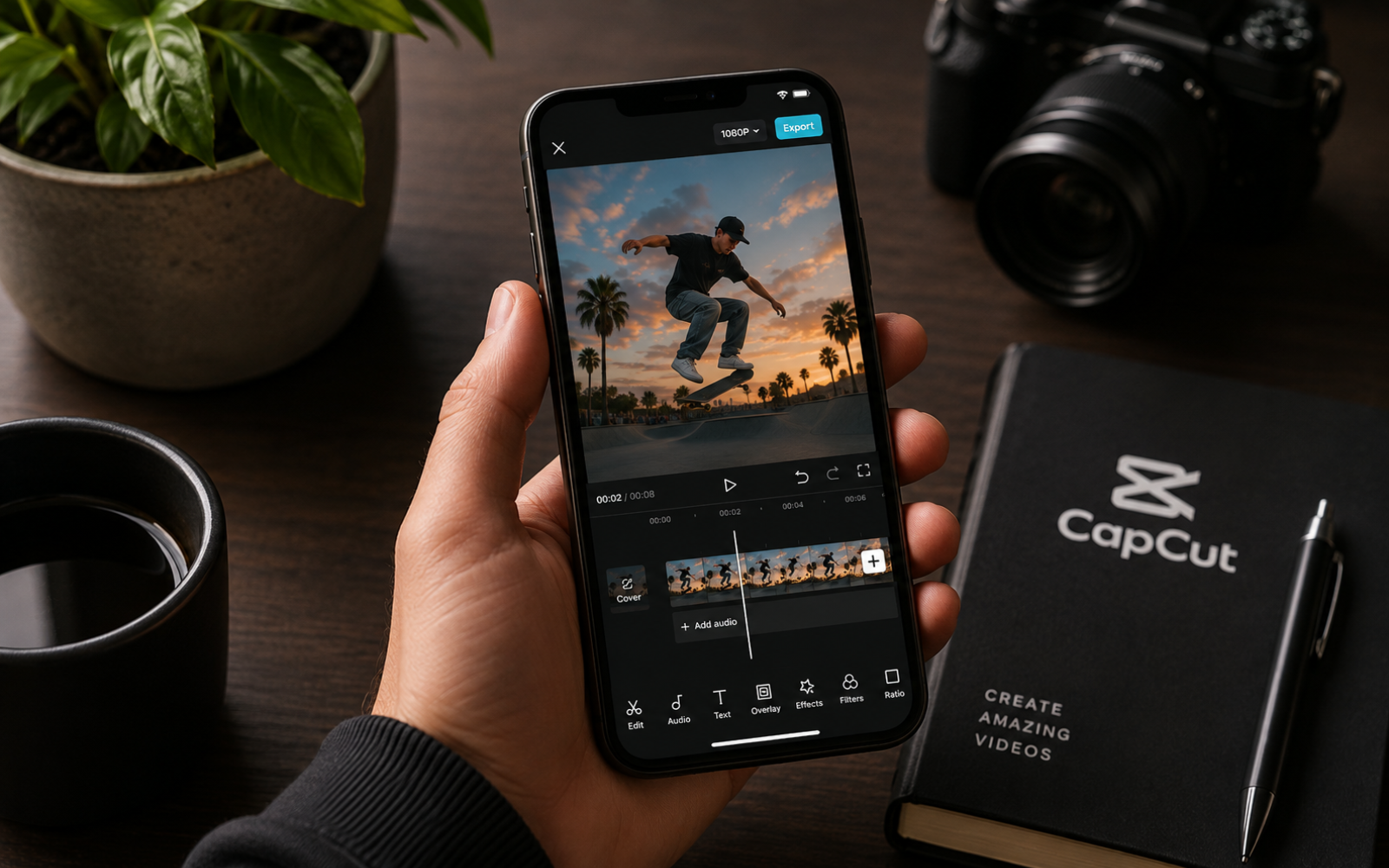
CapCut is known as a video editor, but its photo tools are better than many people realise. If it is already on your phone for Reels or TikTok, the free filters, effects, colour controls and basic social tools can easily handle the photo going into the same post. I would use it when I wanted a modern filter or a more playful effect, although downloading it purely to adjust exposure makes little sense when Snapseed exists.
What I Like About CapCut
It has the broadest collection of toys here. Snapseed feels like a photo editor; CapCut feels like an entire creator shopping centre where somebody placed a photo editor between the video templates, captions, stickers and AI experiments. Sometimes that is exactly what you want, although it is never particularly calm.
The free selection is genuinely useful, especially if the photo is part of a Reel, Story or TikTok and I already have CapCut open. It offers more playful filters and social effects than Apple Photos or Lightroom, and I can do the photo and video work in one place instead of passing the same post through three apps.
What I Don't Like About CapCut
CapCut makes sure you know where free ends and Pro begins. Its own comparison says the free version limits premium templates, effects, fonts and music, while advanced AI tools and cloud storage require payment. The seven-day free trial is available only in selected countries or regions, so you should still check what you are pressing before assuming the good effect is included. CapCut explains its free and Pro limits here, along with the trial conditions here.
I do not blame CapCut for charging for the advanced stuff, because it gives free users plenty. The irritating part is how busy the app feels when I only want to edit one photo, with Pro labels and extra creator features following me through a job Snapseed handles much more quietly.
TGK Verdict on CapCut
CapCut takes third because its free photo editor is better than it needs to be, particularly for social posts, but I would not download this enormous creator toolbox only to warm the colour and add grain. If it is already on your phone, use it. If you want one calm editor for normal photos, Snapseed and Apple Photos make more sense.
4. VSCO Still Has Some of the Best Filters
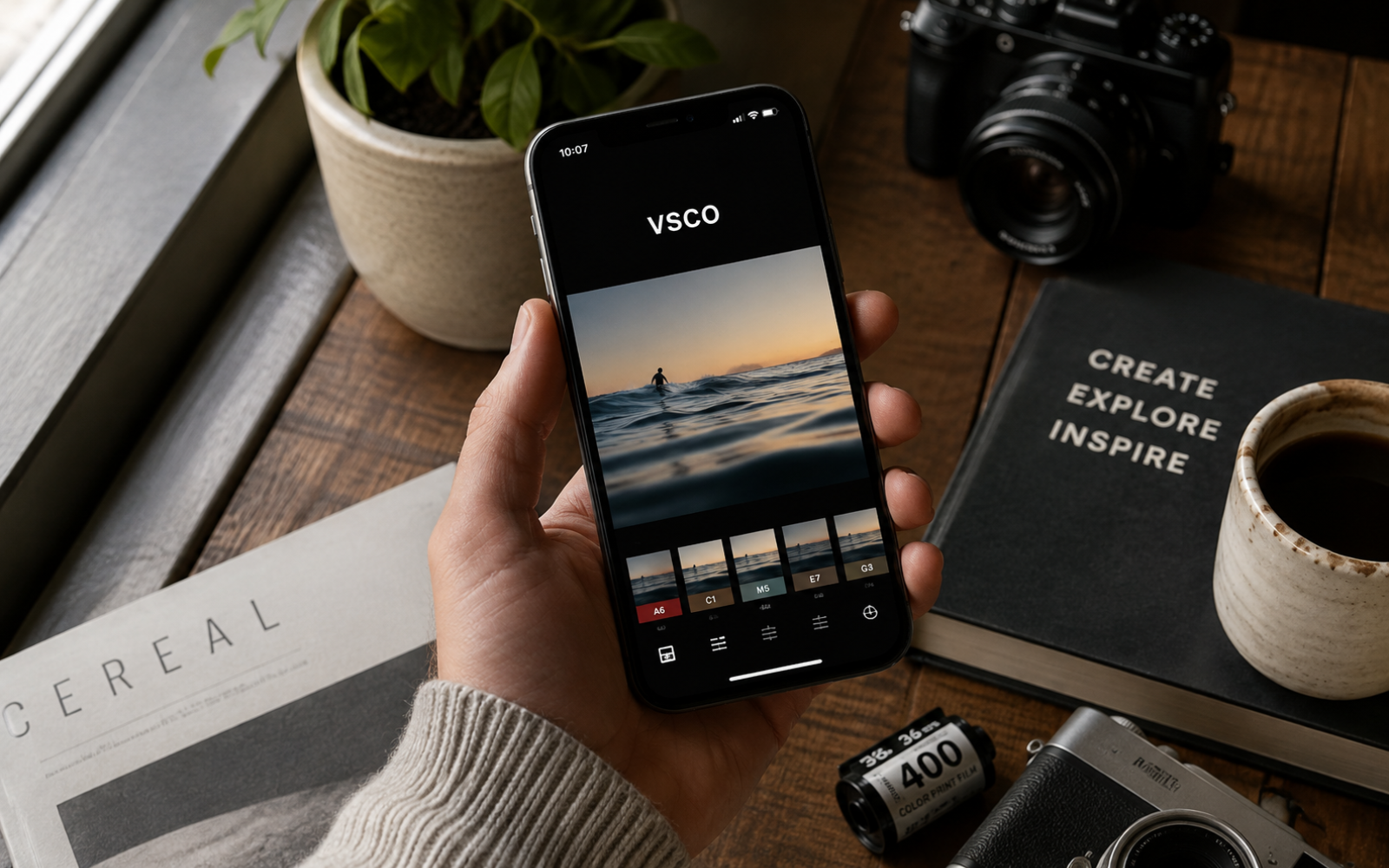
VSCO was everywhere around 2015, especially among girls who could turn one coffee, a white wall and an oversized shirt into an entire visual identity. It became popular for a fair reason: the filters were good, and plenty of them still look better than the radioactive presets stuffed into newer editors.
What I Like About VSCO
When I want a specific mood quickly, VSCO still makes sense. Its interface is clean, changing the strength of a preset is simple and the photo can look considered without twenty minutes of manual colour work. The free selection, however, is much smaller than the app's old reputation suggests. VSCO currently lists nine free presets: B1, B5, F2, G3, M3, M5, P5, T1 and X1, while the library of 200-plus presets and the advanced tools require a paid membership. VSCO's current preset guide lists the free selection.
The app still understands restraint better than most filter libraries. VSCO presets tend to give a photo a style without immediately making the sky orange, the skin grey and the shadows look as though they were coloured with a marker.
What I Don't Like About VSCO
Nine free presets is not much, especially for an app whose entire reputation was built on its filter library. Most of what makes VSCO interesting now requires membership, and once I move beyond quickly choosing a mood, Snapseed or Lightroom gives me more practical control over the image.
TGK Verdict on VSCO
VSCO remains one of the nicest places to find a good-looking filter, but the free version feels more like a sample of VSCO than a complete editor. Fourth is fair: the presets have taste and the interface is pleasant, while too much of the reason to download it lives inside the paid plan.
5. Adobe Lightroom Is Powerful, but the Free Version Stops in Predictable Places
Lightroom gives you the finest colour, exposure, tone and detail controls in this list. If you know what you want from the shadows, highlights, temperature and colour mix, the free mobile app can improve a normal photo properly and gives you more control than Apple Photos or CapCut.
What I Like About Lightroom
The colour tools are the reason to use it. Lightroom lets me make a more careful correction than CapCut or Apple Photos, and the free version is already good when the whole image needs work. It feels like an editor for somebody who wants to understand what the sliders are doing rather than somebody hunting through filters until one looks expensive.
What I Don't Like About Lightroom
It sits fifth because this ranking is about free editors for quick everyday work, not which platform becomes strongest after payment. Adobe charges for cloud storage, cross-device sync, healing, masking, geometry, batch editing, RAW editing and smarter search, while capture, organisation, sharing and most of the normal editing tools remain free. That split is fair for software aimed at people who may genuinely need all that control. Adobe's mobile FAQ confirms what belongs to each version.
For my AI-generated images, those missing tools matter because targeting one awkward area or cleaning a small mistake is often the whole reason I opened an editor. Global colour adjustments are free, but masking and healing are where Premium starts looking over your shoulder. Adobe is entitled to charge for serious software; it simply makes the free version less useful for my kind of quick repair.
TGK Verdict on Lightroom
Lightroom is worth having when careful colour work matters more than speed, and it may be the best editor in this list once somebody pays and learns it properly. That is not the contest here. For a person who wants a simple free edit, Lightroom stops in the exact places where Snapseed keeps going, which leaves Adobe fifth despite how good its core controls are.
Why Prequel, Picsart and PhotoRoom Missed the Top Five
Prequel has some lovely filters, and I have used it for quick stylised edits, but the filters are the main attraction, the useful free choice is limited and it never replaced a complete editor for me.
Picsart does much more, though it now feels closer to Canva, with templates, collages, text, design assets and a growing pile of AI features built around the photo tools. That is useful when you are making a post from scratch. When the photo already exists and only needs to look better, I find the whole thing heavier than necessary.
PhotoRoom is excellent for product cutouts and background work, while Afterlight remains a respectable filter-led editor. Neither would replace Snapseed for my normal quick edits. I would rather give you five clear choices than pretend the list becomes more useful when it reaches 17 apps.
Which Free Photo Editor Should You Download?
Download Snapseed if you want one answer. Apple Photos, CapCut, VSCO and Lightroom all have useful free sections, and charging for deeper control makes sense, but Snapseed gives you filters, proper grain controls, local light adjustments, healing and normal manual editing without ever turning up with the card machine.
If you have an iPhone, try Apple Photos before installing anything. CapCut is there for social effects, VSCO has its particular filter style, and Lightroom makes sense when precise colour control matters more than speed. A large generative change is a different job entirely, and our seven-model AI image editing test shows how quickly those tools can improve one detail while quietly damaging another.
External Sources
All product details were checked on 3 August 2026.
- Google Play, Snapseed features and free model: https://play.google.com/store/apps/details?id=com.niksoftware.snapseed
- Apple Support, editing photos and videos on iPhone: https://support.apple.com/guide/iphone/edit-photos-and-videos-iphb08064d57/ios
- Apple Support, Clean Up requirements: https://support.apple.com/en-us/121429
- CapCut, Standard versus Pro: https://www.capcut.com/resource/capcut-standard-vs-pro
- CapCut, Pro free-trial conditions: https://www.capcut.com/help/enjoy-capcut-pro-free-trail
- VSCO Support, preset guide and free presets: https://support.vsco.co/en/articles/12698471-preset-guide
- Adobe Help, Lightroom mobile free and Premium features: https://helpx.adobe.com/lightroom/mobile/get-started/adobe-lightroom-on-mobile-faq.html